

The sidebar
The top of the sidebar shows your organization and your organization role. If you belong to more than one organization, select it to switch to another one. Below it are Add a meeting and the search button.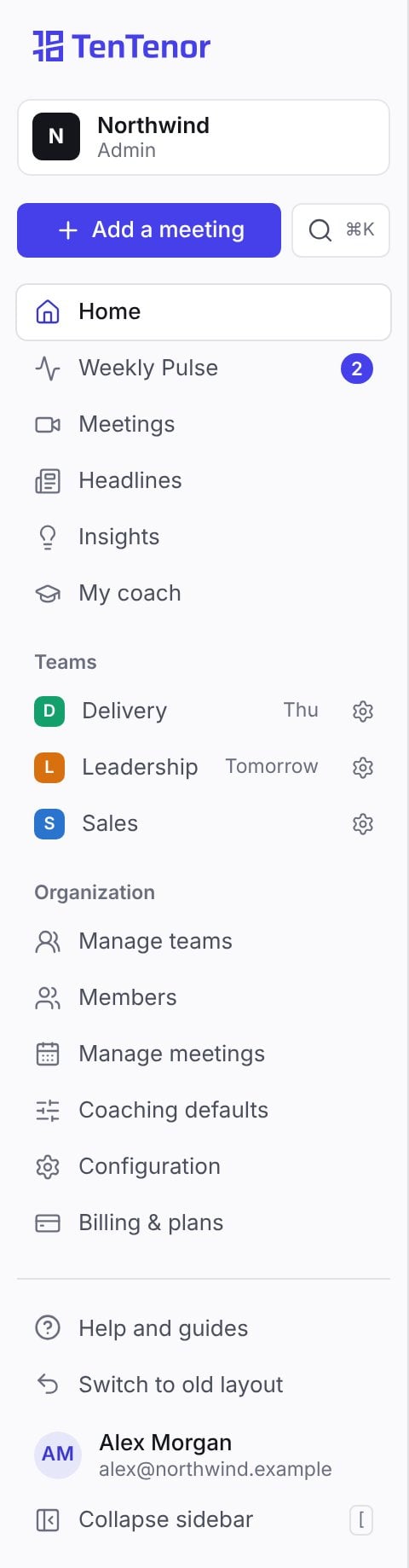
Example sidebar for an administrator. The organization, teams, and person are illustrative; the links you see depend on your role and your organization's settings.
When something needs attention, Weekly Pulse shows how many items there are.
Your teams
Below the main items, the sidebar lists teams under Teams, or Your teams if your organization role is member.- Owners, administrators, and coaches see every team in the organization. Everyone else sees the teams they belong to.
- Select a team to open its team page.
- A day such as Today or Thu beside a team shows when it next meets within the coming week. A red dot means that meeting’s calendar invite has no meeting link, so TenTenor can’t join it.
- If you manage the team, a gear beside it opens its team settings. Owners and administrators manage every team. Facilitators manage the teams they facilitate.
Organization
Owners and administrators also see an Organization group:
These pages also show tabs across the top with shorter names: Teams, Members, Meetings, Coaching, Configuration, and Billing & plans.
If your organization’s access has ended, the sidebar shows only Billing & plans, for owners and administrators. See when your trial ends.
The bottom of the sidebar
- Help and guides opens this documentation in a new tab.
- Your name and email open Profile, where you manage your notifications and, if your organization enables them, voice samples.
- On a wide screen, Collapse sidebar shrinks the sidebar to icons. Point to an icon to see its name, and select Expand sidebar to bring the labels back. You can also press [ to collapse or expand it. The sidebar stays the way you left it in that browser.
Search
Select the search button in the sidebar, or press ⌘K on a Mac or Ctrl+K on Windows, to open search. Start typing to find:- Any page in the sidebar, and Profile.
- A team’s page, or its settings if you manage the team.
- Add a meeting and Help and guides.
Add a meeting
Add a meeting is in the sidebar, on Home, on Meetings, on each team page, and in search. If you can add meetings to more than one team, TenTenor asks which team the meeting is for first, because each team has its own invitation addresses and reports. For the chosen team, the dialog shows:- From your calendar: the team’s two invitation addresses. See invite TenTenor to meetings.
- For the team’s facilitators and organization owners and administrators: Record in the room, Upload a recording, and Paste a transcript. See record, upload, or import.
Home
TenTenor opens on Home. Selecting the TenTenor logo also brings you back here. Home shows:- Weekly Pulse, for owners, administrators, and facilitators: the last 7 days’ meetings held, analyzed, and without a report, the average score, and the first items that need attention. It appears once there is a meeting in those days or something needs attention. Select Open for the full Weekly Pulse.
- Your next meeting: its title, team, and time, whether TenTenor will join it, Your One Thing if you have one on that team, and Last time’s challenge from the team’s latest report. If nothing is scheduled in the next two weeks, Home says so.
- Latest reports: meetings still being recorded or analyzed, then the newest reports. A report follows about ten minutes after its meeting ends. All meetings opens Meetings.
- Headlines, when Insights is on: the latest headlines of medium impact or higher from the last two weeks. See all opens Headlines.
- Your teams, or Teams if you don’t belong to one: each team with when it last met and its latest score and trend.
- Coming up: your other meetings in the next two weeks.
Meetings
Meetings lists meetings across your teams. Choose All, Upcoming, or Past, and use the teams filter, which reads All teams until you pick, to narrow the list.- In progress: meetings being recorded, transcribed, or analyzed.
- Coming up: scheduled meetings in the next 30 days. A recurring meeting shows as one row with its rhythm, such as Weekly. Each row shows the team, the time, the meeting format the analysis will use, and whether TenTenor can join: Bot will join or No meeting link. Facilitators and administrators can select Change to choose a different format for that meeting.
- Past meetings, newest first and grouped by month. Each shows its score, or Failed or Deferred with the reason when there is no report. Select a meeting to open its report. Show older meetings loads more.
Team pages
Select a team in the sidebar to open its page. The header shows the team’s name, your relationship to it, such as You facilitate this team, how many people are on it, and Add a meeting when you can add meetings to the team.
Where the time goes compares the average minutes each part of the agenda took in the team’s recent recorded meetings with the minutes planned for it, and marks parts that run long. It appears once a recorded meeting has timings. People who manage the team can select Change the timings to adjust the plan.
On a phone
On a narrow screen, a bar at the top of the page replaces the sidebar. It shows a menu button, the TenTenor logo, and the name of the page you are on. Select the menu button to open the sidebar, then select a page to go there.While it remains available, you can switch to the old layout with Switch to old layout at the bottom of the sidebar. To come back, select New layout in that layout’s header.